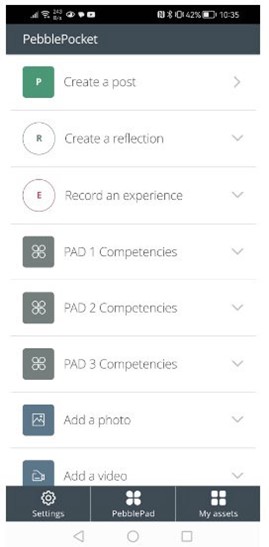
Access and Login to PebblePocket - Guide
How to Access and Login to PebblePocket
1. Download the PebblePocket App from your device's app store (Android and Apple devices only)

2. Open the app and click Settings in the bottom left.
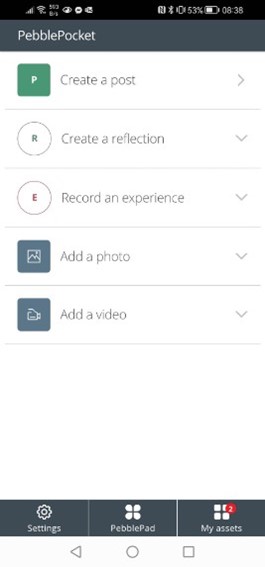
3. Click Account details > at the top.
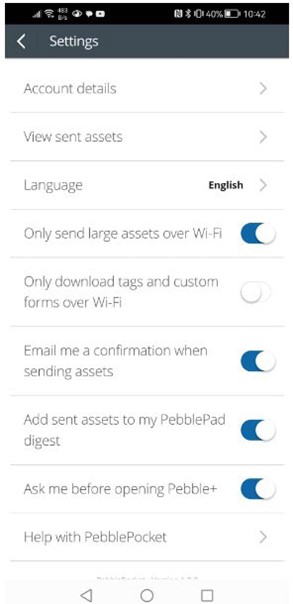
4. Click LOG IN.
5. Click Choose institution: and then select University of Huddersfield. Once selected click Login to PebblePad.
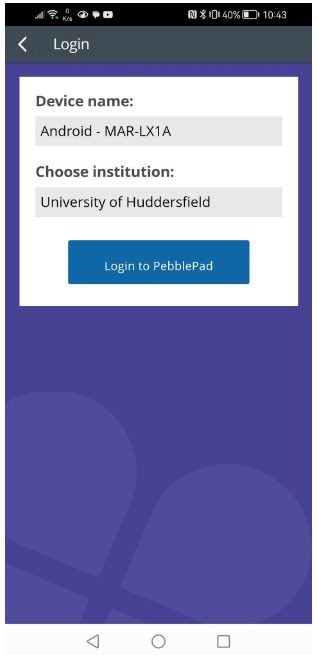
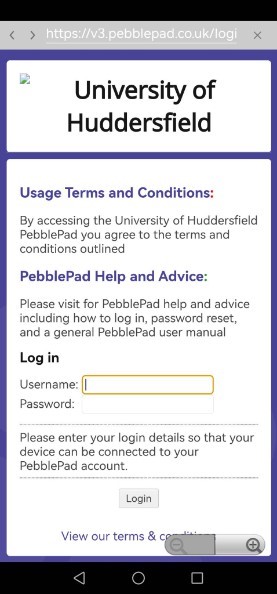
6. Login to PebblePad using your login details. Once you enter your details and click login please allow a little time to load.
Don’t forget Your login details for PebblePad are connected directly to your university login details and therefore are the same with the exception of your username.
Your PebblePad username is just your ID number and your password is the same as your University login.
For example if my ID number was u1234567 my login for University would be:
Username: u1234567@unimail.hud.ac.uk
Password: Student123
My login for PebblePad would be:
Username: u1234567
Password: Student123
7. You will be returned to the settings page. Click the < next to Settings. You should now see your available forms. These will vary by workspace. For example, Paramedic students will see PAD 1, 2 and 3 Competencies**
*Apprenticeship students only have access to PAD 2 and 3 but the same instructions apply.
Caution - Sometimes the Forms do not appear after initially logging in. To resolve this simply click on My assets in the bottom right, wait a minute or two, and then go back. You might have to repeat this process a couple of times so please be patient.